Vendor Due Diligence
Part of AdTech vendor due diligence
Asking vendors to explain each technology fee
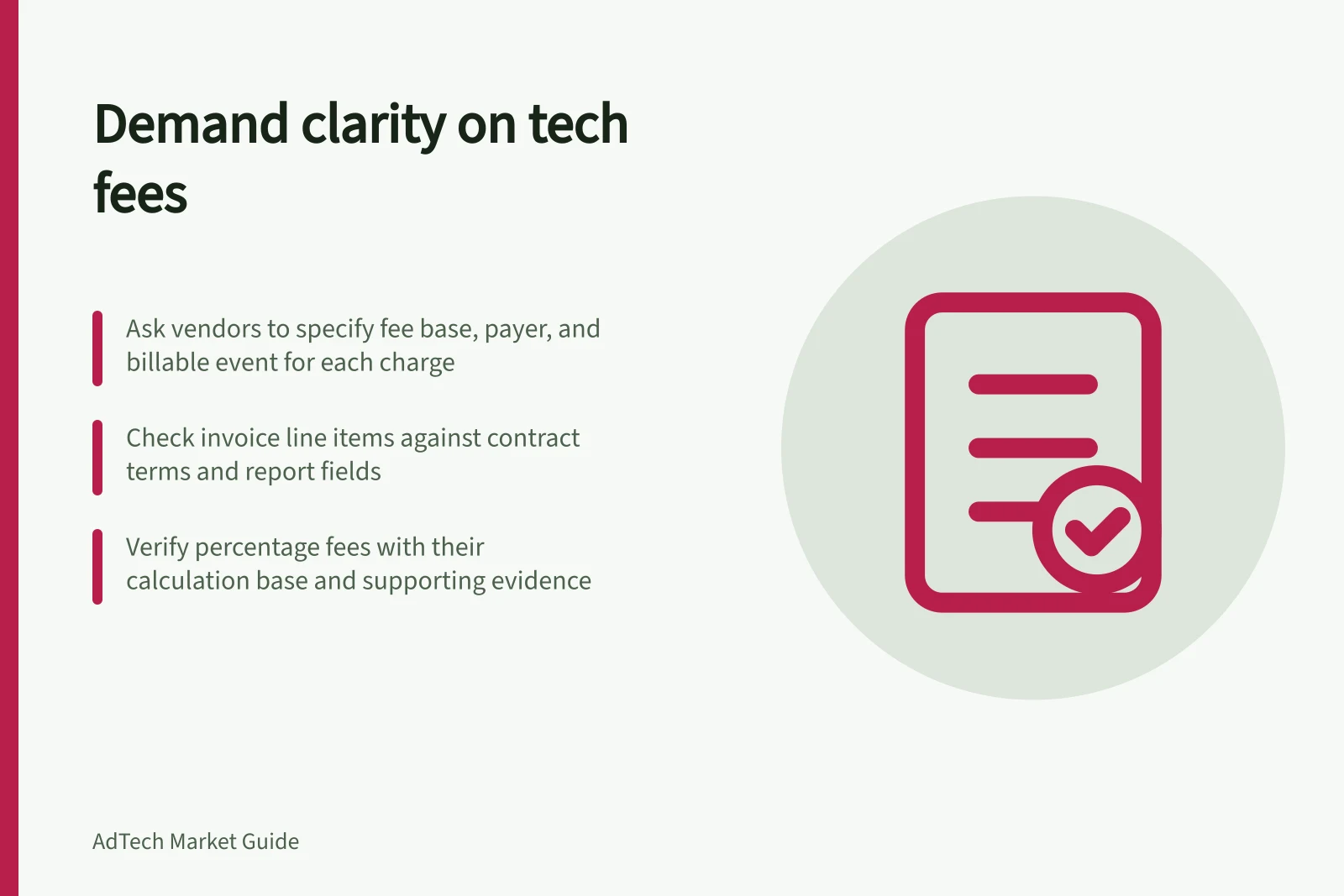
Ask an AdTech vendor to identify each fee’s service, calculation base and invoice evidence, then check what reports include.
Ask a vendor to identify each technology fee by service, charging party, payer, calculation base, billable event and invoice evidence. A percentage is incomplete without its base.
Request a fee map
| Field | Question |
|---|---|
| Service and party | What activity creates the charge, and who invoices whom? |
| Calculation | Is it a percentage, fixed amount, CPM or another basis? |
| Base and event | Which spend measure, impression or other event is billable? |
| Inclusion | Is it already included in a dashboard total? |
| Adjustments | How are credits, refunds, currency conversion and applicable tax handled? |
| Evidence | Which contract term, invoice line and available report field show it? |
Keep platform, data, verification, ad-serving and managed-service charges separate until their definitions are clear. A charge paid through a platform and one billed directly by another party may need different evidence.
Read the vendor’s labels
Vendor labels are not standardised, so adding unlike figures is a common error. Display & Video 360, for instance, keeps separate Google help pages titled “Fees and billable cost”, “Total media cost” and “Compare invoices with reporting”. Read the vendor’s own definition of each label before combining two.
The same word can mean something different at another vendor. Where two suppliers use the same label, ask each for its definition and the page or contract term that states it. Don't assume the figures match.
These are Display & Video 360 page titles, not standard labels across vendors.
Reconcile the proposed charge
Request an illustrative invoice, the contract rule and the report or other record that explains each item. Match account, billing period and currency. For percentage fees, obtain the base as well as the calculated amount. Ask the vendor to explain any item with no corresponding report field; some invoice components or tax may not appear in reporting.
Where the invoice and the reporting disagree, ask the vendor to explain the difference item by item against the contract. Do not treat a general explanation as accounting for the specific discrepancy; check it against the actual mismatch. Google publishes a Display & Video 360 help page titled “Compare invoices with reporting”, the vendor’s own starting point for this comparison.
Record who may approve new paid features, how rates can change and what notice applies. If a required fee cannot be tied to a service, calculation and evidence trail, leave the total cost unconfirmed.